REMOTE PERFORMANCE LAB

Remote Gaming PC Optimization for Low FPS, Stuttering and Input Lag

Custom diagnostics and performance tuning for low-end, mid-range, and high-end gaming rigs.

We tune Windows 10/11, CPU, GPU, RAM, drivers, thermals, network, input latency, and game-specific engine settings. You watch the entire process live with transparent before-and-after benchmarks.

Worldwide Remote Service
Windows 10 / 11
English / Español
Before & After Benchmarking
DIAGNOSTIC TRIAGE

What is happening to your PC?

Identify the primary symptom holding your gaming system back. We pinpoint the root cause without generic registry scripts or guesswork.

01 · FPS

Low FPS

Your hardware should be sufficient, but you get far fewer frames per second than expected for your CPU and GPU.

02 · DROPS

FPS Drops

Gameplay starts smooth and suddenly drops drastically during teamfights, open-world areas, or quick camera turns.

03 · PACING

Stuttering & Microstutters

You have high average FPS, but the game feels choppy and sluggish due to irregular, oscillating frametimes.

04 · LATENCY

Input Lag & Delay

Mouse, keyboard, or monitor feel heavy or delayed. Aiming feels unresponsive and sluggish in competitive titles.

05 · WINDOWS

Slow Windows PC

Windows takes forever to boot, freezes when opening everyday apps, or saturates RAM and CPU with background bloat.

06 · GPU LOAD

Low GPU Usage

Your graphics card hovers at 40%–60% utilization while FPS remains stuck, even if you drop in-game graphic settings.

07 · CPU LOAD

CPU Maxed at 100%

Your processor threads are fully saturated, producing severe frametime spikes, micro-freezes, and thermal throttling.

08 · NETWORK

Ping / Jitter / Packet Loss

Internet speed tests look fast, but in-game you suffer sudden ping spikes, rubberbanding, or packet loss in matches.

ENGINEERING DIAGNOSIS

Your gaming PC has good hardware. Why is it underperforming?

We never assume you need to buy new components. First, we identify what is holding your existing system back.

It is common to see high-end setups—such as an RTX 4070 or Radeon 6800 paired with a modern Ryzen or Intel Core processor—running 20% to 40% below their potential. The cause is rarely broken hardware, but rather configuration mismatches and silent bottlenecks:

  • Low GPU Utilization: The graphics card idles because the CPU or RAM cannot supply frames fast enough.
  • Memory Latency & Single Channel: RAM running at factory 2133 MHz with XMP/EXPO disabled, or improperly seated memory sticks.
  • Resizable BAR (ReBAR) Disabled: The CPU is forced to access VRAM in tiny 256 MB chunks instead of the entire buffer at once.
  • Thermal Throttling: Hotspots exceeding safe limits, forcing the processor to drop boost clocks to prevent overheating.
  • Background Resource Contention: Hardware-accelerated apps, Discord, browser tabs, and Windows telemetry competing for core threads.
  • Display Configuration Mismatches: High refresh rate monitors (144 Hz, 240 Hz, 360 Hz) mistakenly locked to 60 Hz in Windows.
BOTTLENECK DIAGNOSTIC COMPARISON
CASE A

CPU-Bound Bottleneck

CPU LOAD:98% (Saturated)
GPU LOAD:54% (Idling)

The processor cannot compute game physics, draw calls, and background tasks in time. Lowering graphics quality will not increase FPS.

CASE B

Balanced / GPU-Bound

CPU LOAD:48% (Healthy Headroom)
GPU LOAD:99% (Fully Utilized)

The graphics card operates at peak efficiency. Frametimes are predictable and 1% lows remain stable.

Real-world diagnosis depends on the game engine, render resolution, background processes, and in-game graphic APIs (DirectX 11, DirectX 12, Vulkan).
BUDGET & INTEGRATED GRAPHICS

Low-End PC Optimization: Extract Maximum Performance from What You Have

We do not promise to turn an entry-level rig into a high-end workstation. Our goal is to eliminate wasted resources and configure your hardware for maximum stability and responsiveness:

  • Optimization for Ryzen APUs (Vega / RDNA) and Intel UHD/Iris Xe graphics.
  • Fine-tuning virtual memory and paging files for systems with 8 GB or 16 GB RAM.
  • Dynamic VRAM allocation adjustments in BIOS where supported by motherboard firmware.
  • Proper setup of spatial and temporal upscaling technologies (AMD FSR, Intel XeSS, NIS).
  • Elimination of bloatware and background tasks that steal execution cycles on 4-core and 6-core CPUs.
ENTHUSIAST & ESPORTS

High-End PCs with Low FPS or Underperforming Hardware

A high-end system featuring an RTX 4080/4090 or Ryzen 7000/9000 X3D CPU should never stutter or drop frames. We eliminate configuration roadblocks to unleash the full power of your investment:

  • Activation and verification of dual/quad-channel RAM memory profiles (XMP 2.0 / 3.0, AMD EXPO).
  • Verification of PCIe link width (ensuring your GPU runs at full x16 instead of x4 or x8).
  • Enabling Resizable BAR (ReBAR) to streamline direct CPU-to-VRAM texture transfers.
  • Driver latency optimization, clean DDU installations, and trimming unnecessary telemetry services.
  • Configuring NVIDIA Reflex, AMD Anti-Lag, and G-Sync/FreeSync tear-free latency limits.
MOBILE HARDWARE

Gaming Laptop Optimization: Power, Thermals, and MUX Switching

Laptops face severe physical thermal and power limitations. We optimize the operating environment so your laptop sustains peak boost clocks without aggressive throttling:

  • Configuring the MUX switch and Advanced Optimus to bypass integrated graphics bottlenecks.
  • Calibrating Windows power plans to prevent aggressive thermal throttling spikes.
  • Disabling aggressive OEM background utilities (Armoury Crate, Omen Hub, Alienware Command Center).
  • Diagnosing AC power supply brick degradation versus battery-limited throttle profiles.
  • Thermal behavior evaluation and fan curve tuning for competitive esports sessions.
PHYSICAL & THERMAL TELEMETRY

When the Problem Isn't Software: Identifying Thermal Throttling

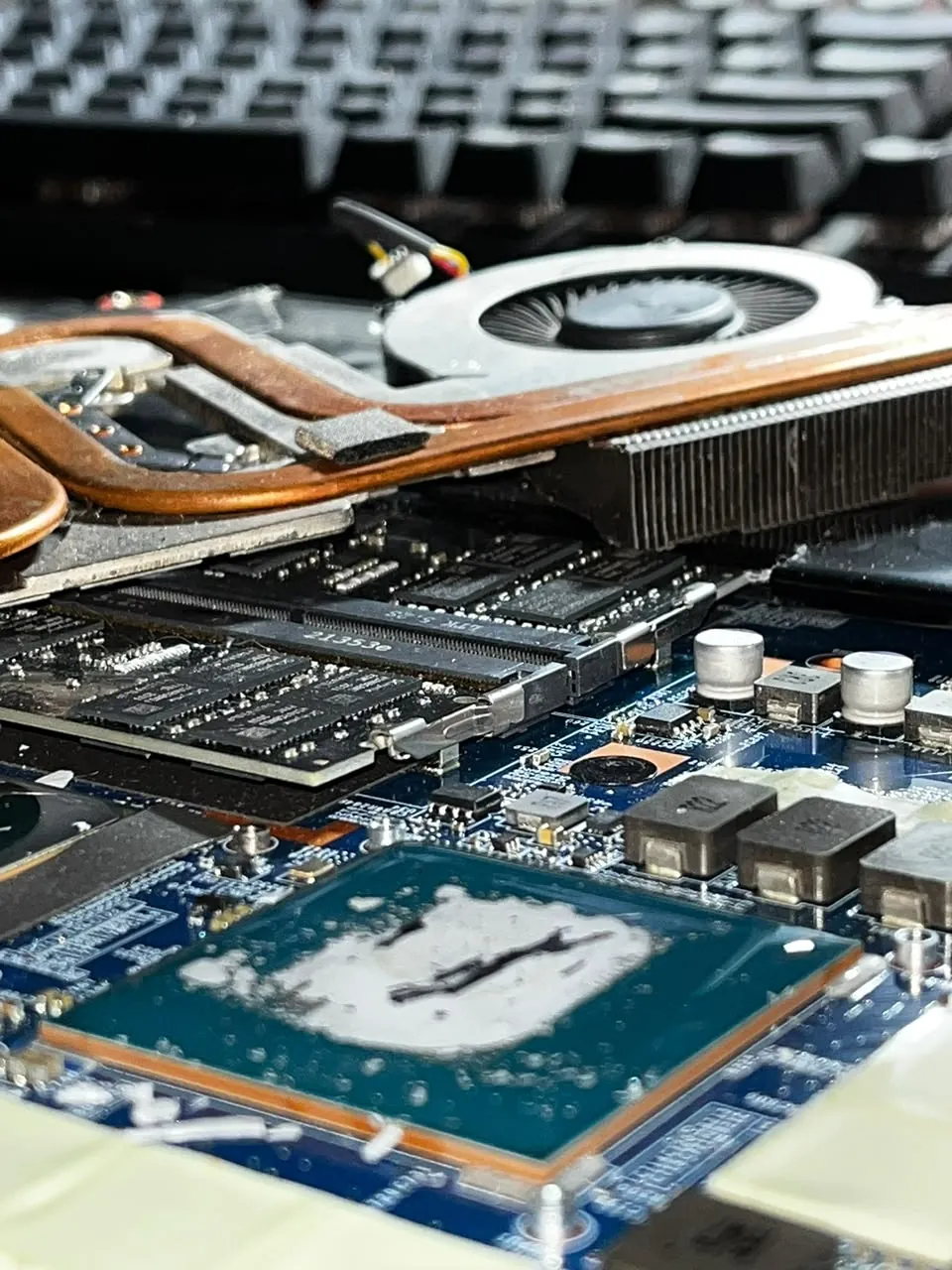
During your remote telemetry diagnostic session, we track junction temperatures, clock decay curves, and core power limits. If your CPU or GPU spikes to 95°C+ within seconds due to petrified thermal paste or clogged heatsinks, we provide honest technical findings so you know physical maintenance is required.

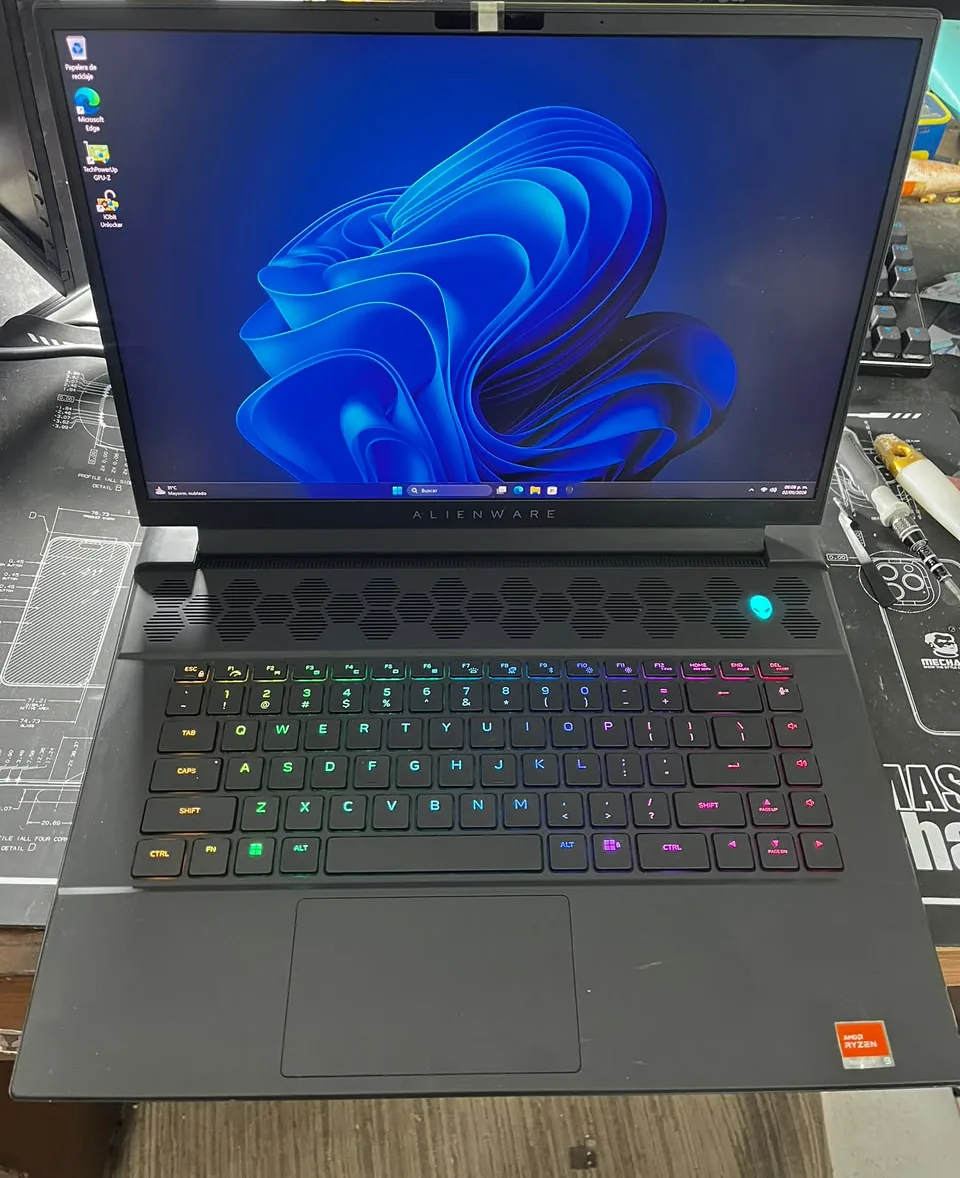
REAL PIXON PC REPAIRGaming laptop on work surface during performance testing
Gaming laptop evaluation: Monitoring sustained performance and temperature stability under real workload.
REAL PIXON PC REPAIRInternal cooling components and RAM slots
Physical cooling and RAM architecture: When the bottleneck is physical (clogged cooling fins or improper memory configuration), no software tweak replaces proper hardware servicing.
METRICS THAT MATTER

Beyond Average FPS: Stable 1% Lows and Consistent Frametimes

An in-game counter showing 200 FPS means nothing if your frametime is unstable. True smoothness comes from eliminating frame pacing variance.

BEFORE OPTIMIZATION

High Average FPS, Severe Stuttering

AVERAGE FPS:185 FPS
1% LOW:42 FPS
VARIANCE:±24 ms spikes
Frametime Graph (Spikes & Microstutters)
AFTER OPTIMIZATION

Flat Frametimes, Rock-Solid Fluidity

AVERAGE FPS:190 FPS
1% LOW:148 FPS
VARIANCE:±1.2 ms (Flat)
Frametime Graph (Consistent Pacing)
TECHNICAL PILLARS

Comprehensive Performance Engineering Breakdown

How we solve the root bottlenecks across every layer of the operating system and game engine.

High FPS but Choppy Gameplay: Stuttering & Microstutters

Stuttering occurs when the time between consecutive frames oscillates erratically. We diagnose:

  • Shader Compilation: Resolving in-game stutters caused by real-time DirectX 12 shader caching.
  • RAM & VRAM Overflow: Preventing system RAM paging when graphics memory limits are exceeded.
  • Storage I/O Latency: Resolving texture streaming hitches on NVMe, SATA SSD, and hard drives.
  • Overlay Conflicts: Eliminating DWM frame hook conflicts from Discord, GeForce Experience, Steam, and Xbox Game Bar.

Input Lag: Eliminating Mouse, Keyboard, and Monitor Delay

We do not make deceptive claims like "0 ms latency." We systematically reduce measurable pipeline delay:

  • Direct Motherboard USB: Routing high-polling peripherals away from saturated internal hubs.
  • Driver Low-Latency Modes: Tuning NVIDIA Reflex and AMD Anti-Lag to prevent GPU render queue bloat.
  • Refresh Rate Verification: Ensuring your display operates at its native maximum Hz in Windows display settings.
  • Clean Frame Limiting: Capping frames slightly below display refresh rates to keep G-Sync/FreeSync active without V-Sync buffer lag.

Clean, Lightweight Windows 10 & 11 for Gaming

We optimize Windows responsibly without breaking system security, Windows Updates, or the Microsoft Store:

  • Startup & Background Hygiene: Preventing auto-launching launchers and updater processes.
  • Power Delivery Tuning: Calibrating Windows Ultimate/High Performance power plans for consistent CPU clocks.
  • OS File Integrity: Executing DISM and SFC health checks to repair corrupted system DLLs.
  • Scheduled Task Cleaning: Disabling redundant diagnostic tasks that trigger during active gaming sessions.

High Ping, Jitter, and Packet Loss: What Can Be Fixed and What Cannot

We deliver honest, evidence-based network tuning without false marketing promises:

  • Local Bufferbloat: Optimizing network adapter buffer sizes to avoid latency spikes under load.
  • Adapter Offloads: Configuring Energy Efficient Ethernet, interrupt moderation, and checksum offloads.
  • Ethernet vs. Wi-Fi: Eliminating local RF interference, packet retries, and channel contention.
  • Honest Boundaries: We clarify that physical distance to game servers and ISP routing cannot be changed by software.

Losing FPS While Streaming or Recording with OBS Studio?

We optimize broadcast setups so streaming does not degrade competitive gameplay:

  • Hardware Dedicated Encoding: Offloading stream rendering to NVENC, AMF, or QuickSync hardware chips.
  • GPU Priority Scheduling: Running OBS in administrator mode to grant scene rendering priority in Windows.
  • Replay Buffer Optimization: Allocating RAM efficiently to prevent sudden disk write bottlenecks.
  • Overlay & Source Overhead: Pruning browser source memory leaks and heavy animated overlays.

Game Freezes, Crash to Desktop, and Driver Errors

We isolate whether crashes stem from software conflicts or hardware instability:

  • Driver Timeouts: Resolving TDR (Timeout Detection and Recovery) crashes with clean driver installations.
  • DirectX & Memory Errors: Resolving memory allocation crashes and corrupted DirectX runtimes.
  • Overclock & Voltage Instability: Testing RAM timings, XMP voltage drop, and unstable GPU overclocks.
  • Hardware Isolation: Identifying failing power supplies, SSD bad sectors, or thermal degradation.
FULL-SPECTRUM PROTOCOL

The 7-Layer Remote Performance Audit Stack

A methodical, engineering-driven workflow inspecting every software and firmware layer affecting frame delivery.

01
HARDWARE & THERMALS
CPU · GPU · RAM · SSD/NVMe · voltages · fan curves and thermal throttling checks
02
WINDOWS INTEGRITY
Background tasks · startup apps · power plans · telemetry hygiene · DISM/SFC system health
03
DRIVERS & CHIPSET
NVIDIA · AMD · Intel · motherboard chipset · audio latency · network interface adapters
04
GAMING ENGINE TUNING
Graphics profiles · FPS caps · VRAM allocation · shader cache compilation · frame pacing
05
INPUT & DISPLAY
Mouse polling rate · keyboard debounce · USB controller latency · true monitor Hz configuration
06
NETWORK & BUFFERBLOAT
Local latency · jitter · packet loss · MTU · Ethernet/WiFi adapter offloads · local routing
07
STREAMING & OBS
OBS Studio setup · NVENC/AMF/AV1 encoder prioritization · GPU render priority · overlay overhead
TAILORED ENGINES

Engine-Specific Optimization for the Games You Actually Play

Every game engine has unique bottlenecks. We tailor settings specifically for your primary titles.

COMPETITIVE FPS

Valorant · Counter-Strike 2 · Fortnite · Warzone · Apex Legends · Rainbow Six Siege · Overwatch 2 · Marvel Rivals

We focus on flat frametimes, elevated 1% lows, minimal DPC latency, stable mouse polling rates, and stripping background processes that contest CPU threads.

OPEN WORLD & MULTIPLAYER

GTA V / FiveM · Rust · Minecraft · Forza Horizon · Cyberpunk 2077

We optimize VRAM buffer headroom, SSD texture streaming speeds, RAM stability in asset-heavy maps, and shader cache pre-compilation.

ESPORTS & OTHER TITLES

League of Legends · Rocket League · EA Sports FC · Steam, Epic Games & Xbox PC Titles

We tune frame pacing, monitor refresh rate synchronization, low-latency power profiles, and display driver compatibility.

Custom Engine Tuning: We configure specific parameters for titles likeWarzone (VRAM scale targets, worker threads config),Valorant / CS2 (DPC latency, low-latency render modes),Fortnite (DirectX 12 vs Performance Mode shader pipelines), andFiveM / GTA V (extended texture memory budgets).
ENGINEERING INTEGRITY

We Do Not Use "Magic Tweaks" or Risky Registry Scripts

The internet is flooded with dangerous "FPS booster" packs that break Windows security, disable updates, and destabilize your system. Here is our exact boundary.

WHAT WE NEVER DO

  • Run black-box .bat or .reg scripts downloaded from anonymous forums.
  • Install questionable third-party "PC booster" or "driver updater" utilities.
  • Disable Windows Defender or core security mitigations without explicit reason.
  • Make absurd, false promises such as "+300% FPS guaranteed."
  • Apply an identical, cookie-cutter preset to every computer.

WHAT WE ALWAYS DO

  • Measure: Record baseline FPS, 1% lows, thermals, and frametimes.
  • Diagnose: Locate the exact hardware or software bottleneck.
  • Modify: Apply only transparent, evidence-based adjustments.
  • Verify: Run the exact same benchmark test to verify real improvements.
  • Document: Explain every modification made to your system.
GLOBAL AVAILABILITY

Worldwide Remote PC Optimization: How It Works

Professional performance engineering delivered safely to your desktop, anywhere in the world.

Your PCYou remain seated at your desk
Secure ConnectionAnyDesk, TeamViewer or RustDesk
Performance TechSenior technician diagnoses live
Benchmark & ReportComparative before/after proof
100% Transparent & Interactive:

You watch every click, command, and setting on your own monitor. You retain master mouse control and can disconnect instantly at any second.

Strict Personal Privacy:

We never open personal folders, photos, or documents. Remote tools are fully closed and can be removed the moment the session concludes.

No Shipping Required:

You do not need to risk packaging or shipping fragile graphics cards and glass PC cases. Everything is handled via high-speed encrypted remote desktop.

Clear Distinction: Remote Windows Tuning vs. Guided BIOS / UEFI

Remote desktop software (AnyDesk / TeamViewer) operates inside Windows and cannot control your motherboard BIOS before the operating system boots. For BIOS-level changes—such as activating XMP/EXPO, enabling Resizable BAR, or adjusting fan curves—our senior technician provides direct video call or voice guidance while you access the BIOS screen.

RIGOROUS PROCESS

Our 4-Step Engineering Methodology

No guesswork. Every session follows a scientific measure-diagnose-optimize-verify protocol.

01

MEASURE

We record baseline metrics under real load: average FPS, 1% lows, frametime consistency, CPU/GPU temperatures, voltages, and background processes.

02

DIAGNOSE

We isolate the specific bottleneck limiting your system: thermal throttling, memory frequency, driver overhead, DPC latency, or game engine misconfiguration.

03

OPTIMIZE

We execute surgical, necessary adjustments across Windows, graphics drivers, engine configuration files, and display settings with full transparency.

04

VERIFY

We rerun the exact same benchmark under identical test conditions to prove measurable performance gains in FPS stability, 1% lows, and temperatures.

TRANSPARENT PRICING

Remote PC Optimization Packages

Direct, flat-rate pricing in USD. Available for clients worldwide via secure remote session.

PC SPEED
$20USD

For slow PCs, work, productivity & everyday study

  • Windows 10 / 11 deep clean & debloat
  • Startup apps & services cleanup
  • Background bloatware elimination
  • Motherboard & peripheral driver updates
  • Storage health & temporary file cleanup
  • Basic malware & system health check
  • Overall system responsiveness tuning
Choose PC Speed
ADVANCED TUNING
$75USD

For enthusiasts, high-end rigs & streamers

  • Everything in Gaming Performance
  • Advanced thermal & power delivery analysis
  • GPU thermal undervolting (where applicable)
  • Guided BIOS tuning: XMP / EXPO activation
  • Resizable BAR configuration in firmware
  • RAM timing verification & stress testing
  • OBS Studio / streaming encoder prioritization
  • Extended hardware stability stress test
Choose Advanced Tuning
TECHNICAL CASE STUDIES

Real Diagnostic Case Studies & Problem Resolution

Real diagnostic cases demonstrating our structured troubleshooting methodology.

CASE #01

Mid-Range Gaming Desktop with Low GPU Usage in Warzone 1080p

HARDWARE: AMD Ryzen 5 5600X, NVIDIA RTX 3070 8GB, 16 GB DDR4, 1TB NVMe SSD.
REPORTED SYMPTOM: Stuttering and low FPS (hovering around 90 FPS) with GPU utilization stuck at 52%. Lowering graphics settings yielded zero FPS improvement.
ROOT CAUSE: RAM sticks were seated in adjacent slots (A1/B1) operating in single-channel mode at 2133 MHz with XMP disabled in BIOS. Additionally, background Discord hardware acceleration was competing for render resources.
CORRECTIVE ACTIONS: Assisted client in reseating RAM sticks to slots A2/B2 (dual-channel), enabled XMP profile to 3600 MHz in BIOS, enabled Resizable BAR, and calibrated the game renderer worker threads to match physical CPU cores.
RESULT: GPU utilization rose to 94%, 1% lows improved significantly from 45 FPS to 105 FPS, and frametimes stabilized completely.
LIMITATIONS: At 1080p in CPU-intensive multiplayer maps, FPS remains governed by CPU single-thread throughput.
CASE #02

Gaming Laptop with Sudden FPS Drops and Microstutters in Valorant

HARDWARE: ASUS TUF Gaming Laptop, Intel Core i7-11800H, RTX 3060 Laptop GPU, 16 GB RAM.
REPORTED SYMPTOM: High average FPS at round start (220 FPS) that suddenly tanked to 70 FPS during firefights, accompanied by severe mouse sluggishness.
ROOT CAUSE: Severe thermal throttling on CPU cores reaching 96°C, combined with Optimus route overhead (display rendered through integrated Intel graphics) and manufacturer bloatware running background analytics.
CORRECTIVE ACTIONS: Configured display to bypass Optimus via dedicated GPU mode, uninstalled heavy OEM monitoring bloatware, calibrated custom aggressive fan curves, and capped FPS at 237 FPS with NVIDIA Reflex enabled.
RESULT: Sustained temperatures stabilized at 78°C, zero thermal clock drops, and immediate, crisp mouse responsiveness.
PHYSICAL LIMITATIONS: Slim laptop chassis inherently require periodic physical cleaning and thermal paste maintenance.
DIAGNOSTIC REQUEST

Diagnose Your PC's Performance

Fill in your hardware specs and primary symptoms to receive an accurate assessment and schedule your live remote session with a senior technician.

Submit Online Support Ticket Instead
FREQUENTLY ASKED QUESTIONS

Frequently Asked Questions About PC Optimization

Direct, technical answers regarding performance, privacy, and worldwide remote service scope.

Why does my PC have low FPS even though I have a powerful GPU?

Having a high-end graphics card does not guarantee high FPS if there is a CPU bottleneck, if your RAM is running in single-channel or at low base speeds without XMP/EXPO enabled, if high temperatures trigger thermal throttling, or if Windows has background processes hogging CPU execution threads.

Why does my GPU stay at 40%–60% usage instead of reaching 99% in games?

When your graphics card sits at low utilization and your FPS is lower than expected, your CPU is usually unable to feed frames fast enough (CPU bottleneck), your RAM has high memory latency, your game has an active frame cap, or you are playing at 1080p where competitive games depend heavily on CPU single-core speed and memory throughput.

Why is my CPU at 100% usage while gaming?

A CPU at 100% means all physical cores and logical threads are completely saturated. This happens due to background apps (screen recorders, browsers with hardware acceleration, heavy antivirus software), physics-heavy multiplayer titles, real-time shader compilation, or running modern multi-threaded games on older 4-core or 6-core processors.

Why do I experience stuttering even when my in-game counter shows high FPS?

Stuttering and microstutters are caused by frametime variance, not your average FPS number. If you average 140 FPS but a single frame takes 35 milliseconds to render every few seconds (equivalent to an instant 28 FPS drop), your eyes perceive a jarring hitch. Our optimization focuses on flattening frametimes and boosting 1% lows.

What are 1% lows and why do they matter more than average FPS?

The 1% low metric represents the average of the slowest 1% of frames during a gaming session. It reflects how smooth your game feels during intense moments such as gunfights, explosions, and rapid turns. A game running at 140 FPS with a 110 FPS 1% low feels vastly smoother than one running at 200 FPS with a 40 FPS 1% low.

What is frametime and why is it critical for gaming smoothness?

Frametime is the exact duration in milliseconds that your computer takes to compute, render, and display a single frame. At 60 FPS, each frame should ideally take 16.6 ms; at 144 FPS, exactly 6.9 ms. If your frametime graph is a flat line, gameplay is completely fluid. If it shows oscillating spikes, you will feel hitching and microstutters.

How can input lag be realistically reduced?

Input lag is reduced by ensuring your monitor runs at its true maximum Hz in Windows, setting an FPS cap slightly below your refresh rate (to avoid saturating GPU render buffers and triggering late V-Sync penalties), enabling low-latency engine modes (NVIDIA Reflex / AMD Anti-Lag), and tuning mouse polling rates on direct motherboard USB ports.

Can a low-end or budget PC be optimized for gaming?

Yes. On budget processors, integrated graphics (Ryzen APUs or Intel UHD), and 8 GB of RAM, every megabyte of memory and CPU cycle matters. We strip system bloatware, optimize virtual memory, configure VRAM sharing, and properly set up spatial/temporal upscalers (such as AMD FSR) to ensure smooth gameplay without requiring hardware purchases.

Is it worth optimizing a high-end gaming PC?

Absolutely. Many high-end systems featuring RTX 4070/4080/4090 GPUs or AMD Ryzen X3D processors run 15% to 30% below their potential due to disabled XMP/EXPO memory profiles, Resizable BAR being turned off in BIOS, conflicting Discord/Steam overlays, improper Windows power modes, or 240 Hz monitors mistakenly running at 60 Hz.

Why does my gaming laptop underperform or overheat?

Gaming laptops operate inside thermally restricted enclosures. We tune manufacturer power modes, configure the MUX switch to bypass integrated graphics (eliminating the Optimus bottleneck), adjust fan profiles, and disable heavy OEM monitoring bloatware that continuously fights for CPU resources.

Why do I lose so many FPS when streaming or recording with OBS?

This almost always happens when encoding through the CPU (x264) instead of utilizing the GPU dedicated hardware encoder (NVIDIA NVENC, AMD AMF, or Intel QuickSync), or when running OBS without administrator privileges, which prevents Windows from granting GPU render priority to the game capture scene.

Can you fix my in-game ping and network latency?

We can diagnose and resolve latency issues originating inside your PC and local network (bufferbloat, outdated network drivers, background bandwidth hogs, adapter offloads, and Ethernet stability). However, physical geographic distance to game servers and ISP routing cannot be magically altered by software.

Does this service work for Valorant, Fortnite, Warzone, CS2, or FiveM?

Yes. Each game engine stresses hardware differently. We adjust specific engine variables: Warzone requires strict VRAM management and shader pre-compilation; Valorant and CS2 rely heavily on CPU single-thread throughput and low DPC latency; Fortnite requires careful DirectX render mode selection.

Do you need access to my personal files or passwords?

Never. We never ask for or access your personal documents, photos, browsing history, or passwords. The entire remote session is strictly restricted to diagnostic utilities, Windows settings, drivers, and game configuration files.

Can I watch everything the technician does on my screen?

Yes, 100% of the session is visible on your primary monitor in real time. You see every window opened, every measurement taken, and you retain full mouse control. You can pause or terminate the remote session instantly at any second.

Do I need to format or reinstall Windows to get optimal performance?

In the vast majority of cases, a fresh reinstall is not needed. We clean background bloat, repair Windows system integrity using DISM/SFC, and update critical drivers. We only recommend a clean reinstall if the operating system has irreparable registry corruption or severe malware damage.

Can remote optimization harm my computer or void my warranty?

No. We do not apply risky over-voltage tweaks or operate outside manufacturer-safe limits. Advanced adjustments like thermal undervolting are thoroughly validated with real-time memory and thermal stress tests before finalizing.

How long does a remote PC optimization session take?

A typical session takes between 60 and 90 minutes depending on the selected package. This includes initial baseline benchmark testing, step-by-step custom adjustments, and final comparative before-and-after testing.

¿Qué opinan nuestros clientes?

Déjanos un comentario y calificación sobre nuestro servicio.

Deja tu Comentario

Pixon PC registration offer: 30% off eligible labor

PIXON PCDigital offer30%off eligible labor
Online registrationPIXON REGISTRATION

Sign in before registering your device to apply the discount automatically to eligible service labor.

  • Device details saved
  • Service updates in your account
  • Written quote before repair

Valid only for eligible authorized service labor. Parts, transportation outside the base coverage area and third-party services are excluded. The benefit is confirmed after diagnosis.